



Hi Adopter,
An invoice needs checking, a client is waiting for an update, and your notes from the last call are still sitting in a document. These jobs aren’t difficult on their own, but they keep coming back. Each time, you have to gather the details and work out what to say.
You can use AI to prepare a first draft from information you provide. Then you check it, correct anything it got wrong and save the instructions for the next time the job comes around.
Choose the job you want to try
Invoice reminder: prepare a polite message and check payment status before sending it.
Proposal: turn the requested scope and an approved price into a draft without guessing the missing terms.
Client update: put progress, next steps and an open question in one place.
Monday brief: sort the priorities you’ve already identified and see which decisions still need your attention.
Call follow-up: draft a note and action list from what was actually agreed.
Start with the one that lands on your desk most often. Each example gives you the information to provide, a copyable prompt, fictional details to test it with and a check to make before you use the result. At the end, you’ll see how to save the instructions so you can use them again.
You could apply the same approach to lead replies, onboarding notes, support replies or a paperwork checklist. Cash and payroll forecasts, month-end reconciliation and contracts need more care. Use verified records and get the appropriate accounting, payroll or legal review for that work.
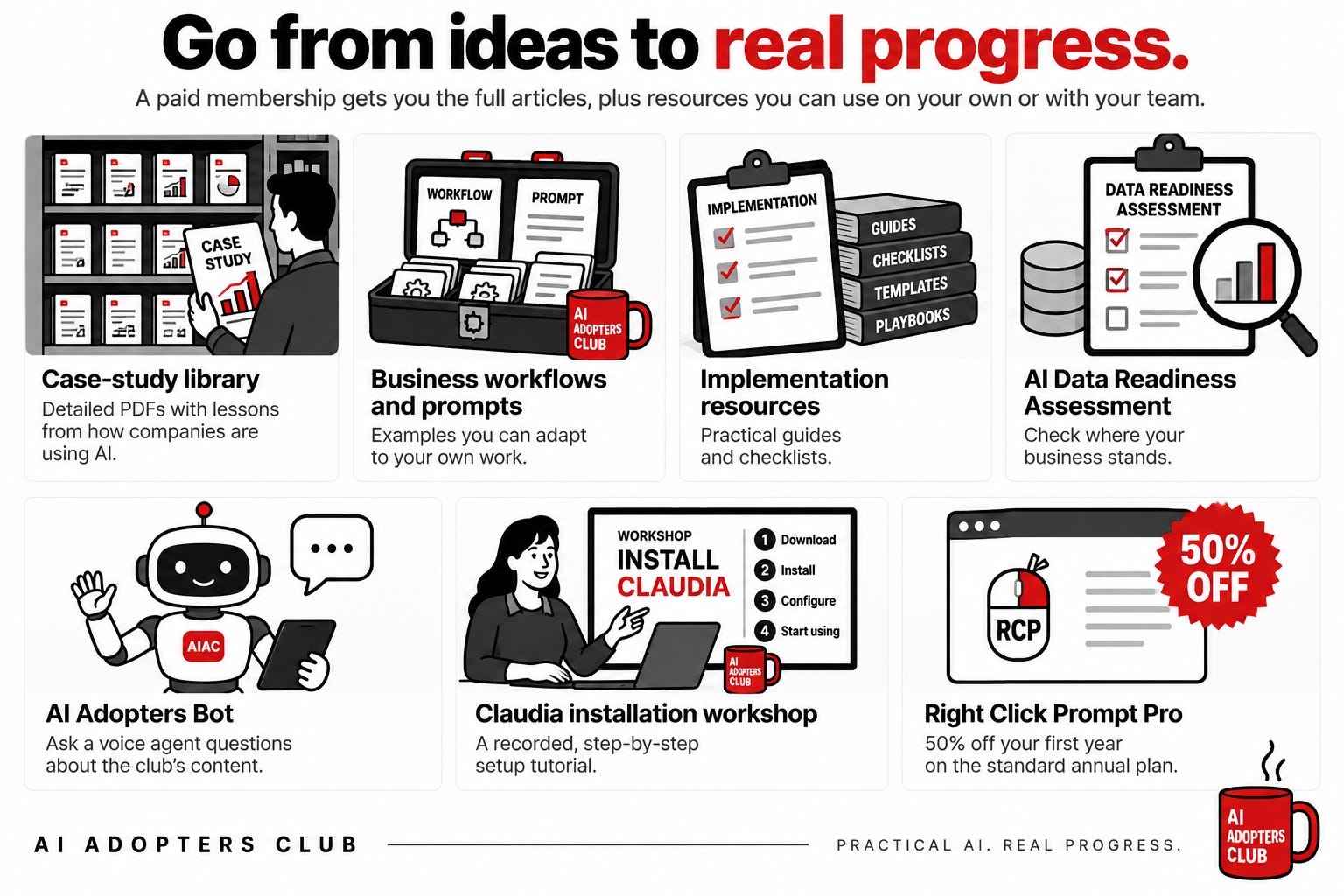
Become a paid member ➖ See all the perks
Before you start
Choose a job you already do. Open a text-based AI assistant you use and paste one prompt below. Each includes fictional information, so you can see what comes back without using real records. Replace that example when you’re ready to use your own information.
For real work, share only material you’re authorised to use with your chosen service. Remove names, contact details, confidential terms and identifying information where needed. Check your organisation’s rules first. You review the result and decide what to send or use; these prompts don’t send messages or update records for you.
1. Draft an invoice reminder
Use it when: an invoice needs a follow-up and you want a polite first draft.
Provide: the invoice reference, verified amount and due date, plus any payment status you’re sure about. The example below is fictional.

2. Prepare a proposal from approved prices
Use it when: you have an agreed price list and need a starting draft for a potential client.
Provide: the requested scope and approved prices. The example below is fictional.
3. Turn notes into a client update
Use it when: a client needs to know what happened and what comes next.
Provide: a few verified progress notes, the next action and any question for the client. The example below is fictional.
4. Make a Monday brief from your priorities
Use it when: you have a list of competing tasks and need a starting point for the week.
Provide: your known tasks, fixed deadlines and any decision you need to make. The example below is fictional.
5. Follow up after a call
Use it when: you have notes from a conversation and need to keep track of what was agreed.
Provide: the useful points, stated actions and any owners or dates. The example below is fictional.
Keep the instructions that work
Once you’ve tried one, change the wording to fit how you work. Add the context the assistant needs each time, such as the kind of business you run, the tone you prefer and the checks you always want. Keep confidential details out unless your organization permits them in the service.
Save those reusable instructions in a document. Remove the fictional example and add fresh, approved information each time you use them. If you spot the same mistake twice, add a specific instruction to catch it next time.
If you use Claude, you can also save them as project instructions. Go to Projects, choose New Project, then Set project instructions. Paste your reusable context and instructions, without the fictional example. Start a chat in that project and add the information for the job you want to do.
Saving instructions gives you something to reuse. It doesn’t install a Claude skill, connect an account or put a task on a schedule. You still provide the information and check the work. Pick the example that would help you most this week, try it, and keep the parts that make your next attempt easier.
Adapt and Create, Kamil